Control Interface Description
Each AI function of the vision module corresponds to an independent interface (except the settings interface). Users can directly operate the module through the dial button, without relying on external port control.
Toggle the dial button left or right to switch between different function interfaces.
Once you enter a specific interface, the corresponding AI function will be automatically enabled.
If an AI function contains additional steps (such as “select” or “learn”), press the dial button for further control (specific operations depend on the current function; see the descriptions in the AI Functions section).
Note: The images shown are for reference only. The actual display may vary depending on the module.
****
Top Status Bar & Bottom Navigation Bar
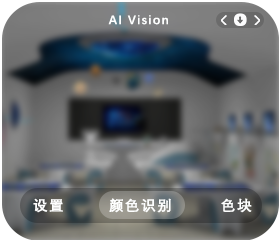
To optimize display clarity, both the top and bottom bars automatically hide after 5s of inactivity.
Redisplay status bar:
Perform any dial button action (click or toggle).This action only restores the display and does not trigger any function change or setting modification.
Resume operations:
After the bars reappear, you can continue using the dial button for normal function control.
Design purpose: keep the interface clean and avoid accidental interference with ongoing tasks.
Layout Description:
Bottom Navigation Bar
Center highlighted icon: currently active function
Left/Right icons: represent the “previous” and “next” functions (switchable via left/right dial toggle)
Top Status Bar
Displays information dynamically based on the active function
Specific details vary depending on function requirements
Interaction Logic: When the dial is toggled left or right, the highlighted marker in the bottom bar updates in real time, and the top bar synchronously refreshes with information for the target function.
Settings Interface
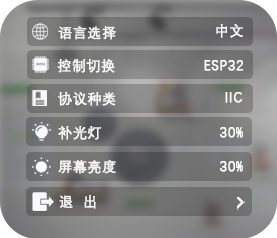
The settings interface is used to configure basic module parameters such as language, port protocol, brightness, and fill light.
When entering this interface for the first time, press the dial button to activate the settings.
By default, the language option is selected (highlighted).
Toggle the dial left/right to switch to other options (e.g., port protocol).
After making changes, select Exit to save and exit.
Note: Some settings require a restart to take effect; the module will reboot automatically.
Settings Options |
Descriptions |
|---|---|
Language |
Switch between Chinese / English by pressing the button. |
Control Chip |
When selecting the port protocol option in the setting interface, click the button to switch between** K210** or ESP32 mode. |
Port Protocol |
The protocol used to communicate with the K210 depends on the Control Chip setting. Refer to the Communication Protocol section for detailed specifications. The protocol can be selected by pressing the dial button. |
Address Selection |
Select the I²C address for K210: options are 0x24 / 0x25 / 0x26. |
Fill Light |
Fill Light Settings |
Screen Brightness |
Adjusts the display brightness within the range of 20%–100%, in 20% increments. Finer adjustments are not supported. |
Exit |
Exits the settings menu and saves changes. You must click Exit after making modifications to ensure settings are saved. |